Your Step-by-Step Guide to Android 17's Gemini Intelligence Features
Introduction
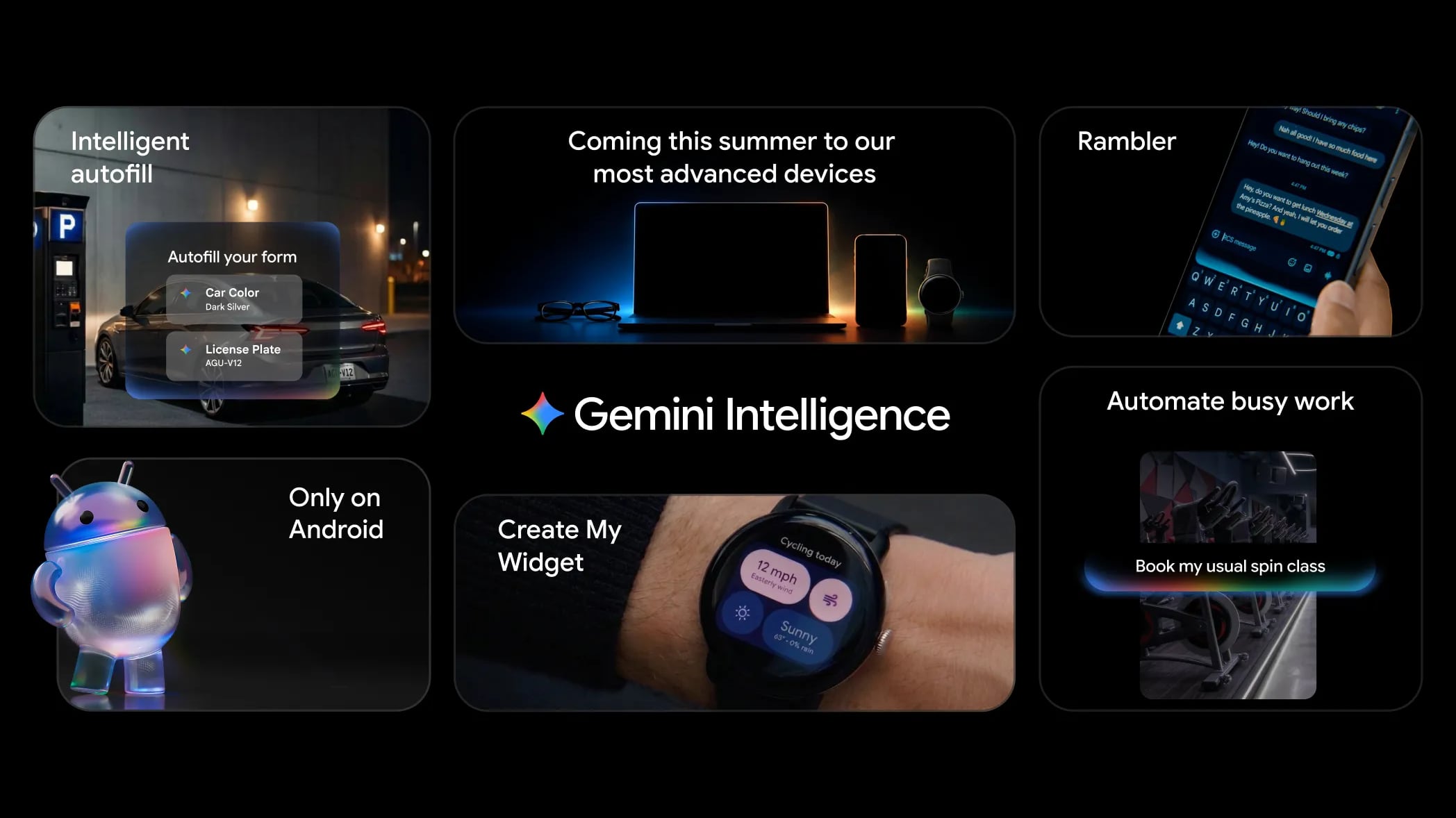
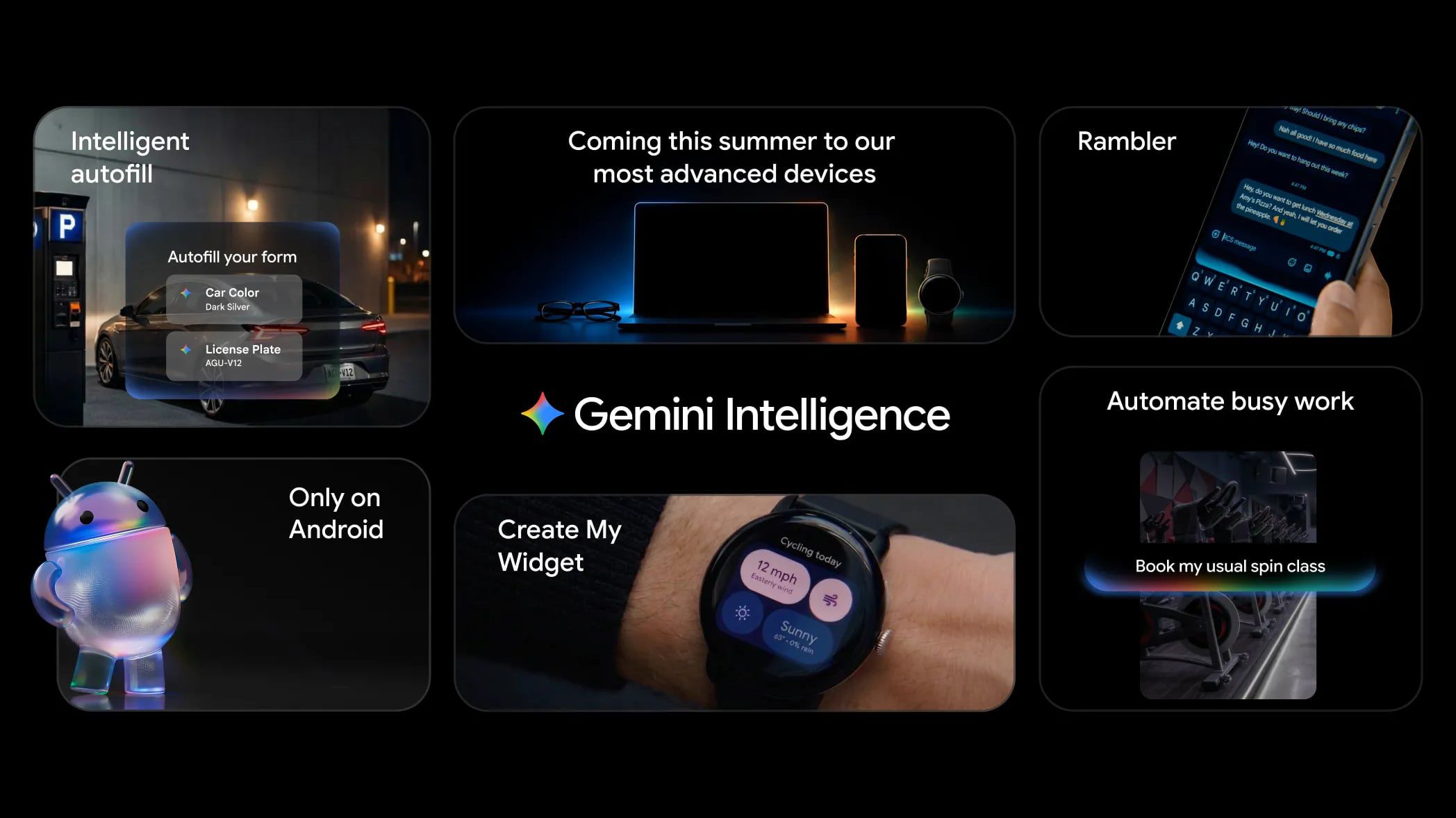
Google recently previewed Android 17, a major update that rebrands the operating system as an 'intelligence system' powered by what it calls Gemini Intelligence. This guide walks you through every new AI-driven capability—from autonomous tasks to custom widgets—so you can start using them the moment the update lands on your device. Whether you want to make purchases with a long press, dictate messages without filler words, or build a 3D emoji collection, these steps will help you master Android 17’s smartest features.
What You Need
- A compatible smartphone or tablet running Android 17 (available via OTA or Pixel devices first).
- An active internet connection for initial setup and cloud-based AI tasks.
- Google apps updated to the latest versions (Gemini, Chrome, Gmail, Google Photos).
- Optional: A car with Android Auto or Google built-in for vehicle-specific features.
Step-by-Step Instructions
Step 1: Enable Gemini Intelligence
When you first boot Android 17, you’ll be prompted to turn on Gemini Intelligence. If you skip this, go to Settings > Google > Gemini Intelligence and toggle it on. Grant permissions for screen context, notifications, and app data (e.g., Gmail, Photos). This unlocks all AI features.
Step 2: Use Expanded Gemini Integration
Gemini can now handle tasks autonomously. To book a class or make a purchase, say “Hey Google, book a yoga class for tomorrow at 6 PM” or “Buy the first result for running shoes.” Gemini will walk you through confirmations. You can also type commands in the Gemini app. Ensure ‘Autonomous Actions’ is enabled in Gemini settings.
Step 3: Activate Visual Context
Visual context lets Gemini understand what’s on your screen. For example, open a notes app with a shopping list. Long press the power button until Gemini opens. It will read the list and ask if you want to add items to a delivery cart. Confirm, and it populates the cart in a supported shopping app. Use this for any on-screen text—recipes, addresses, or URLs.
Step 4: Smarter Web Browsing in Chrome
Open Chrome and navigate to a webpage. Tap the Gemini icon in the address bar. You can: Research – say “Find reviews for this product”; Summarize – “Summarize this article in three bullet points”; Compare – “Compare this with the previous page.” For automated tasks, use Chrome Auto Browse: say “Reserve a parking spot near here” or “Book an appointment at 2 PM.” Chrome will fill forms and confirm.
Step 5: Master Autofill with Personal Intelligence
Android 17’s Autofill uses info from Gmail, Photos, and other Google apps. To fill a text field—like a shipping address—tap the field and choose the Gemini Autofill suggestion. It pulls from recent emails (e.g., an order confirmation) or scanned IDs from Photos. No manual typing required. Adjust sources in Settings > Autofill > Personal Intelligence.
Step 6: Dictate Cleanly with Rambler
Open any text field (messages, notes) and tap the microphone. When the Rambler icon appears (a small wave), start speaking. Rambler automatically removes filler words like “um” and “like,” even if you speak multiple languages. After you stop, it reconstructs a concise message. Tap the Rambler icon to tweak the cleanliness level: light, medium, or strict.
Step 7: Create Custom Widgets with Natural Language
Long press on your home screen and select Create My Widget. Describe what you want, for example “a weather widget with a 7-day forecast in Celsius” or “a countdown to my birthday with a photo.” Gemini generates the widget in seconds. You can resize it and edit the description later. Supported types include weather, recipes, events, clocks, and stock tickers.
Step 8: Explore 3D Emoji
Android 17 adopts Noto 3D—a new emoji set. Open any keyboard, tap the emoji icon, and select the new 3D style (available under a new tab). Use them in messages, social media, or as sticker-like reactions. No extra setup needed; they replace the old 2D emoji by default.
Step 9: Revamp Android Auto & Google Built-in
If you use Android Auto, update to the latest version. You’ll see a Material 3 Expressive interface with customizable widgets on the home screen. Google Maps is now edge-to-edge, and Immersive Navigation shows 3D views of turns. While parked, play YouTube directly. To use Gemini in cars, say “Hey Google, respond to that text” or “Order food for pickup from my favorite place.” For cars with Google built-in, access Zoom calls or ask vehicle-specific questions (e.g., “What’s my tire pressure?”).
Step 10: Record Screen Reactions & Improve Instagram
For social media, use Screen Reactions: open the camera, tap the double-camera icon, then film your reaction with both front and back cameras simultaneously. The output is a split-screen video ready to post. If you use Instagram, Android 17 includes optimizations from Meta—photos and videos will look sharper and have better color accuracy. Make sure your Instagram app is updated.
Tips for Best Results
- For Visual Context (Step 3): Hold the power button steadily until you feel a vibration. If Gemini doesn’t detect the screen content, try closing and reopening the app.
- For Rambler (Step 6): Speak naturally—Rambler is trained to handle pauses and repetitions. Test the strictness level on a short message first.
- For Create My Widget (Step 7): Be specific about the data source (e.g., “weather from my location” not just “weather”). You can stack multiple widgets in a single description.
- For Android Auto (Step 9): Ensure your car supports Gemini commands. If not, use the phone’s Gemini app via Android Auto’s assistant button.
- General: Gemini Intelligence consumes more battery when using screen context. Consider disabling it for apps you don’t need (banking etc.) in Settings > App Permissions.
Related Articles
- How to Contribute to Redox OS’s Real-Hardware Support
- Unlock Enhanced Productivity: Windows 11 Pro Now Available for Just $10
- 10 Essential Insights into Durable Workflows with the Microsoft Agent Framework
- 10 Game-Changing Features of Data Wrangler's New Notebook Results Table
- Get the Best Digital Photo Frame: Aura Aspen FAQ and Sale Details
- From Idea to App in a Day: The Unseen Revolution of Autonomous AI Agents
- 10 Game-Changing Facts About Subquadratic’s 12-Million-Token AI Model
- Gigabyte Launches Z890 Aorus Elite Duo X: Sub-$280 Board Brings CQDIMM to Arrow Lake Refresh