Why the Command Line Still Reigns Supreme: Customizing Your Terminal for Productivity
The Resilience of the Command Line
In the early 1990s, few would have predicted that the command line would remain a vital tool three decades later. Back then, graphical user interfaces (GUIs) were rapidly conquering the consumer market, with Windows and even niche systems like AmigaOS promising to banish text-based interfaces to the dustbin of history. Yet here we are, spending more time than ever in terminal windows. The command line didn't just survive—it thrived, evolving into a powerhouse for developers, system administrators, and power users.
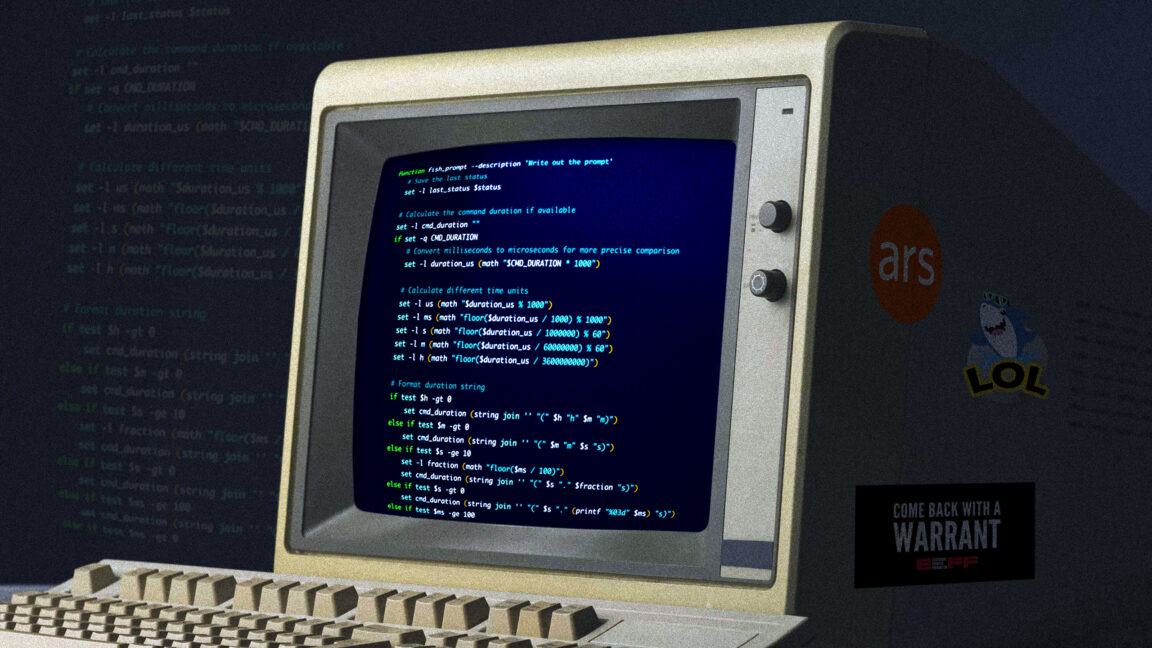
The key lies in what a terminal offers that a GUI cannot: precision. As a wise commentator once noted on Slashdot, a mouse-driven interface essentially reduces the user to pointing at the screen and grunting, “Do! Do that!” at the computer. Right-click menus add a limited “More things!” grunt, but the vocabulary remains painfully restricted. The command line, by contrast, lets you compose precise instructions—words and symbols that tell the computer exactly what to do, without ambiguity.
Modern Terminal Customization
Today’s terminals are far from the stark, monochrome windows of the past. Through tools like Oh My Zsh, Powerlevel10k, and tmux, users can craft an environment that boosts efficiency and even brings a touch of beauty to the command line. Custom prompts with Git status indicators, syntax highlighting, and autosuggestions are just the start. You can also layer on essential tools to supercharge your workflow.
Shell Choice and Prompt Engineering
The first step to a tricked-out terminal is selecting the right shell. While Bash is ubiquitous, Zsh offers superior customization through frameworks like Oh My Zsh. With it, you can enable plugins for Git, Docker, npm, and dozens of others, while themes transform your prompt into an information dashboard. For example, the Powerlevel10k theme provides a segmented prompt showing current directory, command execution time, and even a weather emoji—all configurable via an interactive wizard.
Prompt engineering goes beyond aesthetics. A well-designed prompt reduces cognitive load by surfacing critical context: “Am I in the right directory? Is the Git branch clean? What was the exit code of the last command?” These details, shown at a glance, prevent costly mistakes.
Multiplexing with tmux
For those who juggle multiple tasks, tmux is a game-changer. It allows you to split your terminal into panes, create windows, and detach sessions that survive network drops. You can run a long process in one pane, edit code in another, and monitor logs in a third—all without leaving the keyboard. Custom keybindings and status bars can turn tmux into a lightweight desktop environment inside your terminal.
Essential Shell Tools and Scripts
Beyond the shell itself, a curated collection of command-line utilities can dramatically improve productivity. Here are a few power-user favorites:
- fzf — a fuzzy finder that lets you search files, directories, command history, and more with a minimal keystrokes. It integrates seamlessly with your shell and tools like
Ctrl+Rfor history search. - ripgrep (rg) — faster than grep for code search, with automatic respect for .gitignore and a clean output.
- bat — a
catreplacement with syntax highlighting, line numbers, and Git change indicators. - htop — an interactive process viewer that is more intuitive than top.
- jq — for slicing, filtering, and transforming JSON data on the fly.
These tools, combined with custom aliases and functions, turn a plain terminal into a task-specific powerhouse. For instance, an alias like alias gst='git status' saves precious seconds, while a function that wraps rg and fzf can let you open any file in your project with a few keystrokes.
Scripting Your Way to Automation
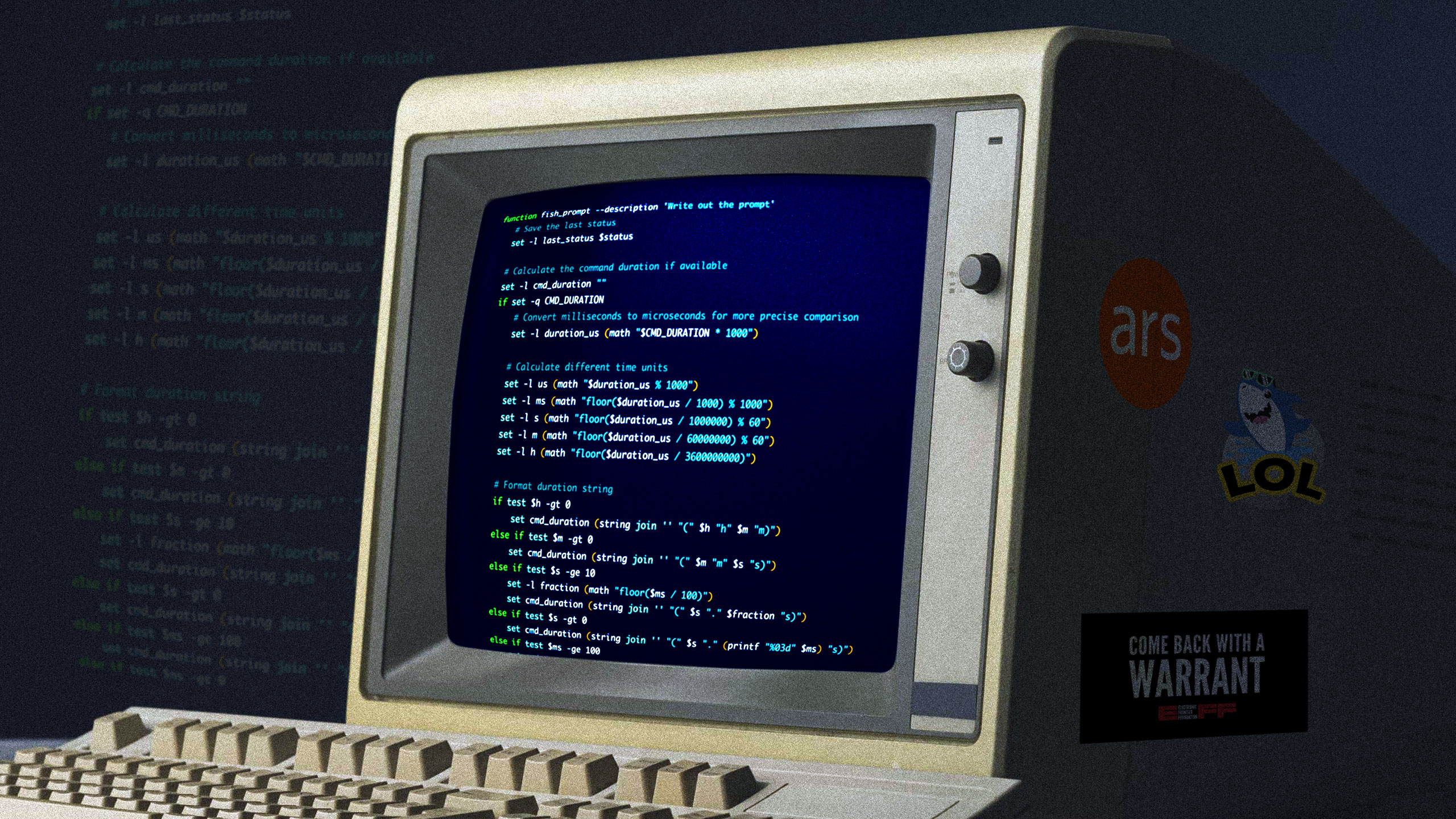
The command line truly shines when you chain tools together with scripts. A shell script can automate backups, sync files, or set up development environments. With tools like make and just, you can define recipes for common tasks, making complex workflows reproducible and shareable. The ability to pipe data from one command to another—ps aux | rg 'python' | awk '{print $2}'—is something no GUI can replicate with such elegance.
Creating a Tricked-Out Terminal
Putting it all together, a fully customized terminal might include:
- A Zsh environment with Oh My Zsh and Powerlevel10k, providing a responsive prompt that shows Git branch, time, and command count.
- tmux configured with a bottom status bar displaying window names, load average, and battery status.
- Fzf integrated for quick file opening, directory switching, and command history search.
- Aliases for frequent operations (e.g.,
alias gco='git checkout') and functions for complex tasks (e.g.,function g() { git $@; }). - A color scheme that reduces eye strain, such as Solarized Dark or Nord.
This setup may take an afternoon to configure, but the return on investment is immense. Every repetitive action becomes a keystroke; every piece of information is instantly accessible. The terminal evolves from a bare utility into a cockpit for your digital work.
Conclusion: Why the Command Line Endures
Three decades after the GUI’s promise to eliminate text, the command line remains indispensable. It offers a precision and flexibility that point-and-click cannot match, and the modern ecosystem of shells, plugins, and tools makes it more powerful than ever. Whether you are a seasoned developer or a curious newcomer, investing time in customizing your terminal will pay off in productivity and enjoyment. The future may bring new interfaces, but for now, the command line is still the best tool for many jobs—and for a growing number of users, it’s the only tool they need.
Related Articles
- Warming Seas Threaten Seagrass Meadows: New Study Reveals Which Habitats May Survive
- Mastering GitHub Copilot CLI: Interactive vs Non-Interactive Modes Explained
- Mastering Data Analysis with Python: A Step-by-Step Tutorial
- The Paradox of Bee Virus Detection: Awareness Without Avoidance
- Beware of AI Browser Extensions: They Might Be Stealing Your Data
- Platform Engineering at GitHub: A Q&A Guide to Solving Infrastructure Challenges
- Docker AI Governance: Centralized Control for Safe Agent Autonomy
- How to Discover 3 Hidden On-Device AI Tools on Android with Google's Overlooked App